We've completely redesigned the WhatsApp onboarding experience to give accounts three clear paths to get started: connect an existing WhatsApp Business App with coexistence, create a new WhatsApp Business Account, or migrate from an existing Business Solution Provider (BSP) like 360Dialog, Twilio, Wati, ManyChat and others.
> If your accounts are connected through another BSP today, they can now self-migrate to LeadConnector without losing a single asset. No support tickets, no downtime, no risk.
What's New
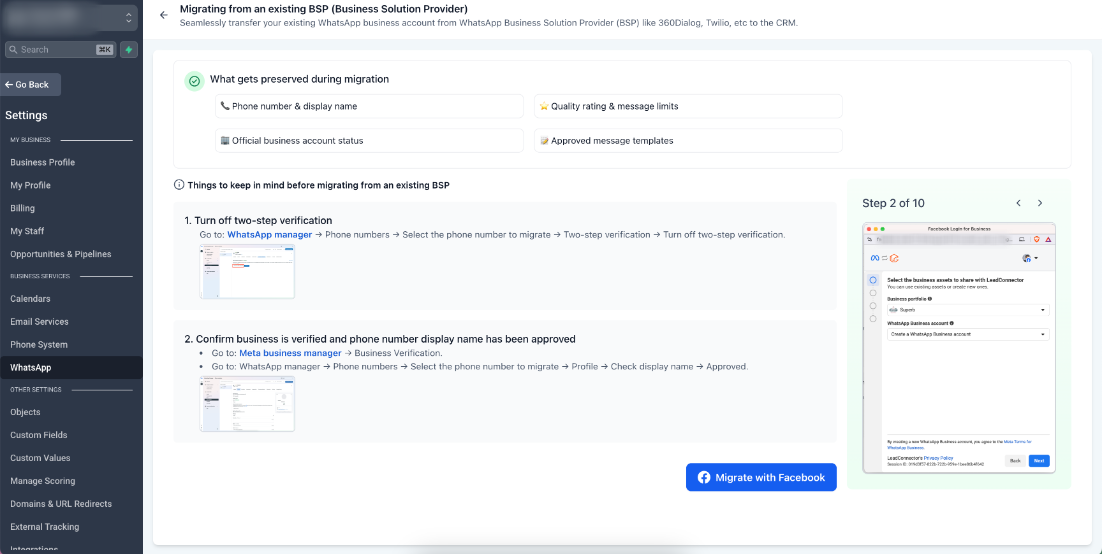
Migrate from an Existing BSP
- Self-Service BSP Migration:Accounts connected to another BSP (360Dialog, Twilio, etc.) can now migrate directly to LeadConnector using Meta's Embedded Signup flow. Previously, this required creating a brand new WABA and risking the loss of critical business assets. For example, a dental clinic using 360Dialog can now switch to the Platform and keep their verified phone number, approved templates, and Official Business Account status intact, all without a single day of messaging downtime.
- Full Asset Preservation:The migration carries over everything: your phone number, display name, quality rating, messaging limits, Official Business Account (OBA) status, and all previously approved templates. Nothing gets left behind.
- Pre-Migration Validation:Before starting, the flow checks eligibility so there are no surprises mid-migration.
Redesigned Onboarding Experience
- Three Clear Paths:The onboarding screen now presents three distinct options, each with tailored guidance:
-
Connect your WhatsApp
Link your existing WhatsApp Business App and continue using it on your phone while managing conversations seamlessly inside the CRM. Up to 6 months of chat history will be synced automatically. Ideal for small businesses (like a local salon or real estate agent) that already talk to customers on WhatsApp and want to bring those conversations into the CRM without disrupting their daily workflow.-
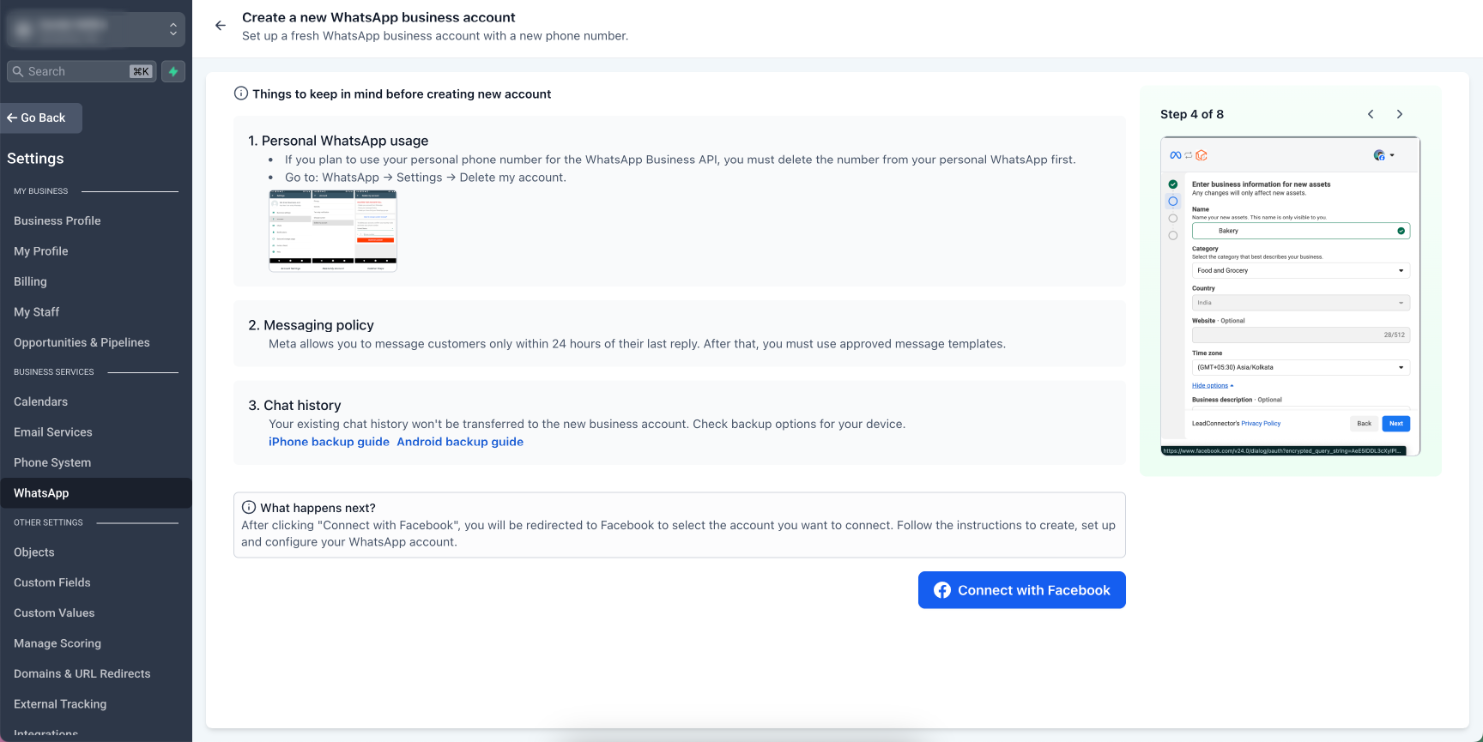
Create a New WhatsApp Business Account:
Set up a fresh WhatsApp Business Account with a landline, a mobile number not currently on WhatsApp, or a brand new number. Great for accounts onboarding new clients who don't have an existing WhatsApp presence yet.-
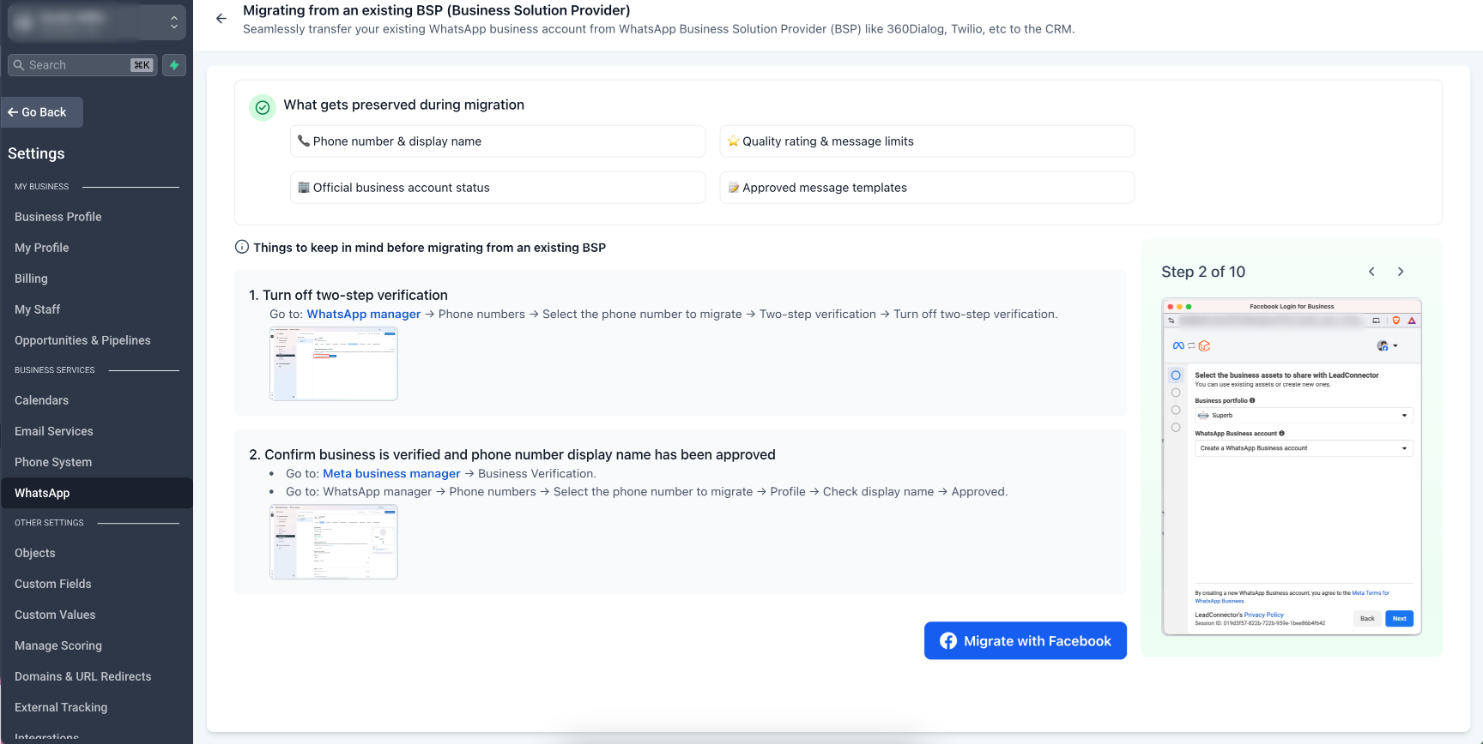
Migrate from an Existing BSP:
Seamlessly transfer your existing WhatsApp Business Account from another provider to the CRM, preserving your phone number, quality rating, templates, and OBA status.- In-App Guidance:Each path includes prerequisites, things to keep in mind, and links to help documentation before you begin.
555 Business Phone Numbers
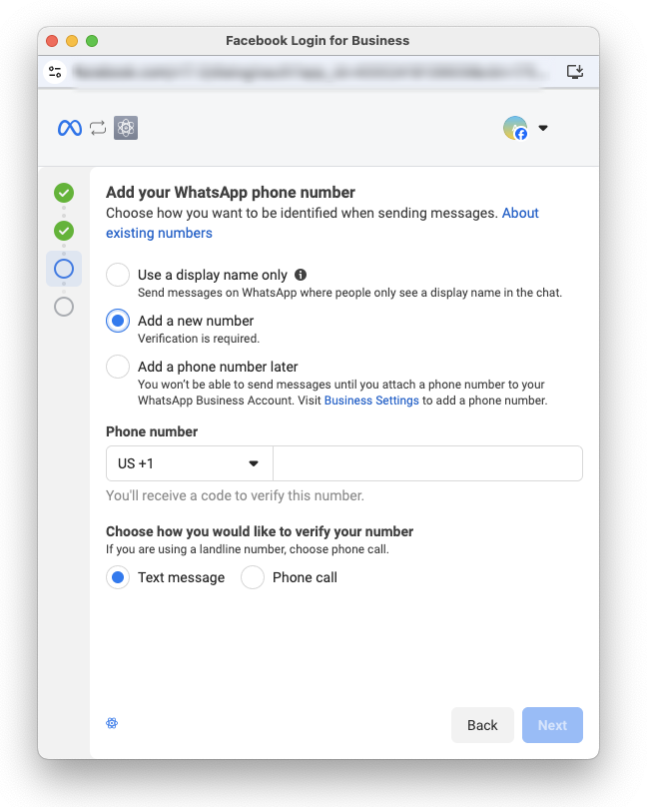
- Claim a Free US Business Number:Eligible accounts can now claim up to two 555 business phone numbers during onboarding. These are real US numbers (+1 country code, 555 area code) that work like standard business phone numbers, with full pricing rules and quality ratings. This is a game-changer for accounts managing multiple client accounts: spin up a new WhatsApp-enabled account in minutes without needing to buy or port a phone number.
- Instant Verification:555 numbers are verified automatically, so there's no need for a phone call or SMS verification step. Perfect for businesses that want to get started immediately without using a personal or landline number.
- Things to Know:555 numbers cannot be migrated to another WhatsApp Business Account or used outside the WhatsApp Business Platform. Display names must be approved before sending messages.
How to Get Started
- In the account, go to Settings → WhatsApp.
- Choose the path that fits your situation:
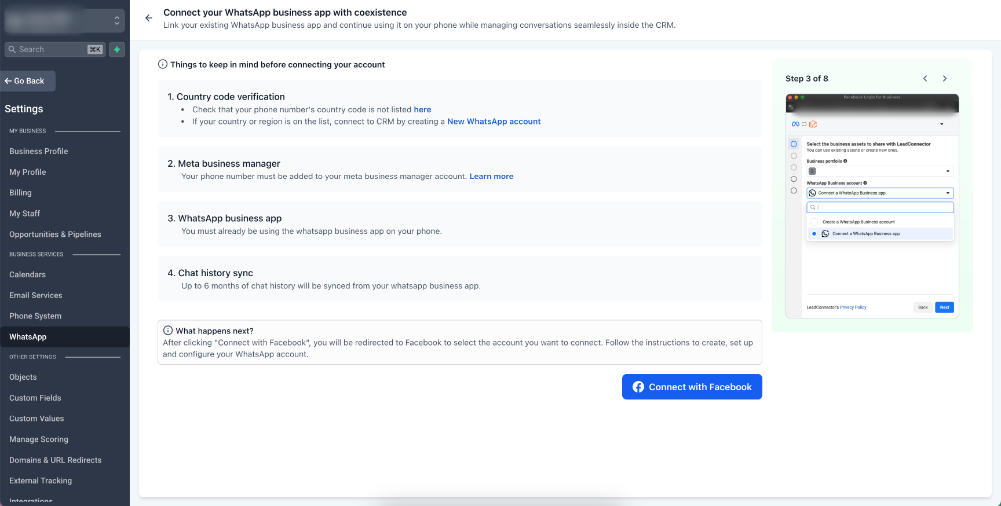
Option A: Connect your WhatsApp
- Verify your phone number's country code is not on the restricted list. If it is, use Option B instead.
- Confirm your phone number is added to your Meta Business Manager account.
- Make sure you're already using the WhatsApp Business App on your phone.
- Click Connect with Facebookand follow the instructions to link your account.
Option B: Create a New WhatsApp Business Account
- If using a personal phone number, delete it from personal WhatsApp first (WhatsApp → Settings → Delete my account).
- Note: existing chat history won't transfer. Back up your chats before proceeding.
- If eligible, you'll see the option to claim a 555 business phone numberduring the phone number addition step.
- Click Connect with Facebookand follow the instructions to create and configure your new account.
Option C: Migrate from an Existing BSP
- Turn off two-step verification: go to WhatsApp Manager → Phone Numbers → Select your number → Two-step verification → Turn off.
- Confirm your business is verified in Meta Business Manager → Business Verification.
- Confirm your phone number display name is approved: WhatsApp Manager → Phone Numbers → Select your number → Profile → Check display name shows "Approved."
- Click Connect with Facebookand follow the Embedded Signup flow to complete the migration.
Why This Matters
Businesses today are stuck in one of three situations: they're on another BSP and afraid to lose their WhatsApp assets by switching, they're already using WhatsApp on their phone but can't bring those conversations into a CRM, or they want to get started with WhatsApp but don't have a dedicated business number. This update solves all three.
- Migrate from any BSP without losing your phone number, display name, quality rating, templates, or OBA status
- Reduce onboarding time from days (with manual porting) to minutes (with self-serve Embedded Signup)
- Sync up to 6 months of chat history when connecting via coexistence
- Get started instantly with a 555 number if you don't have a dedicated business phone number yet
- Eliminate support tickets related to BSP migration, number porting, and asset loss
Was this article helpful?
That’s Great!
Thank you for your feedback
Sorry! We couldn't be helpful
Thank you for your feedback
Feedback sent
We appreciate your effort and will try to fix the article